 Mod Goblins Wiki
Your items from another map are waiting in a Goblin Item Migration Box. Place it, open it, and take what you need.
What the box is
When an admin migrates your tribe from another map, everything you owned there is stored for you: items, creatures in cryopods, and the contents of your dedicated storages. You reach it through a Goblin Item Migration Box.
- There is one box for each map you were migrated from. Its name shows the tribe and that map.
- The box is the same on every map of the cluster. Place it where you want your things.
- Nothing is dropped into your inventory by surprise. You take things out when you are ready.
Get and place the box
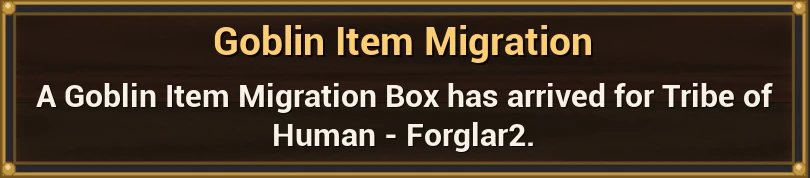
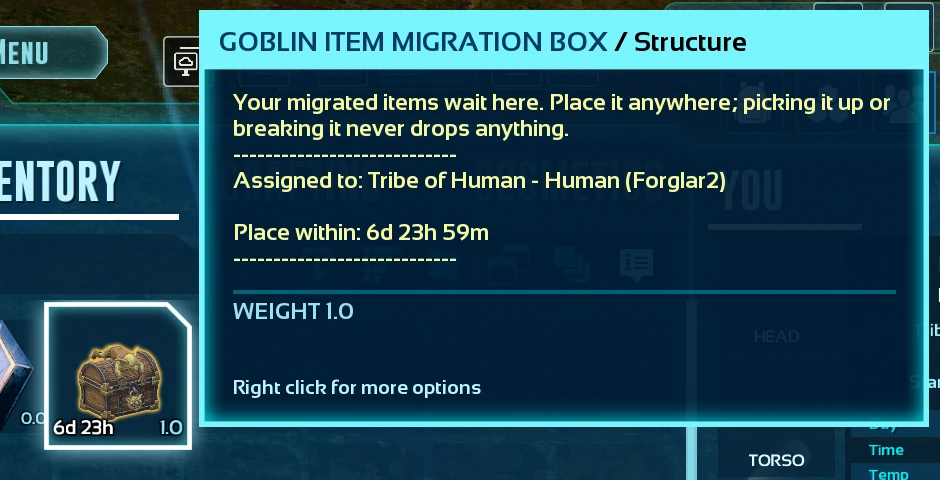
- An admin gives you the box. A notice appears on your screen and the box item is in your inventory.
- Hover the item to see who it is assigned to and how long you have to place it.
- Put it on your hotbar and place it like any structure.
Only the player or tribe the box is assigned to can place it. The box cannot be damaged.
Two timers. The first runs until you place the box for the first time. The second starts at that moment and runs until the box leaves. Both are shown on the item, on the placed box and in the box window. When the time runs out, items still inside are lost.
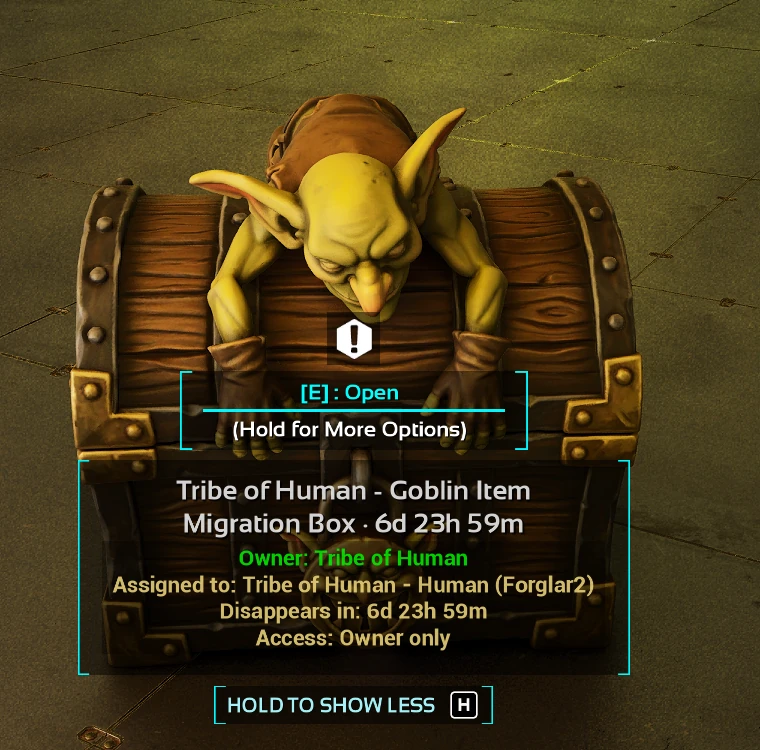
Open the box
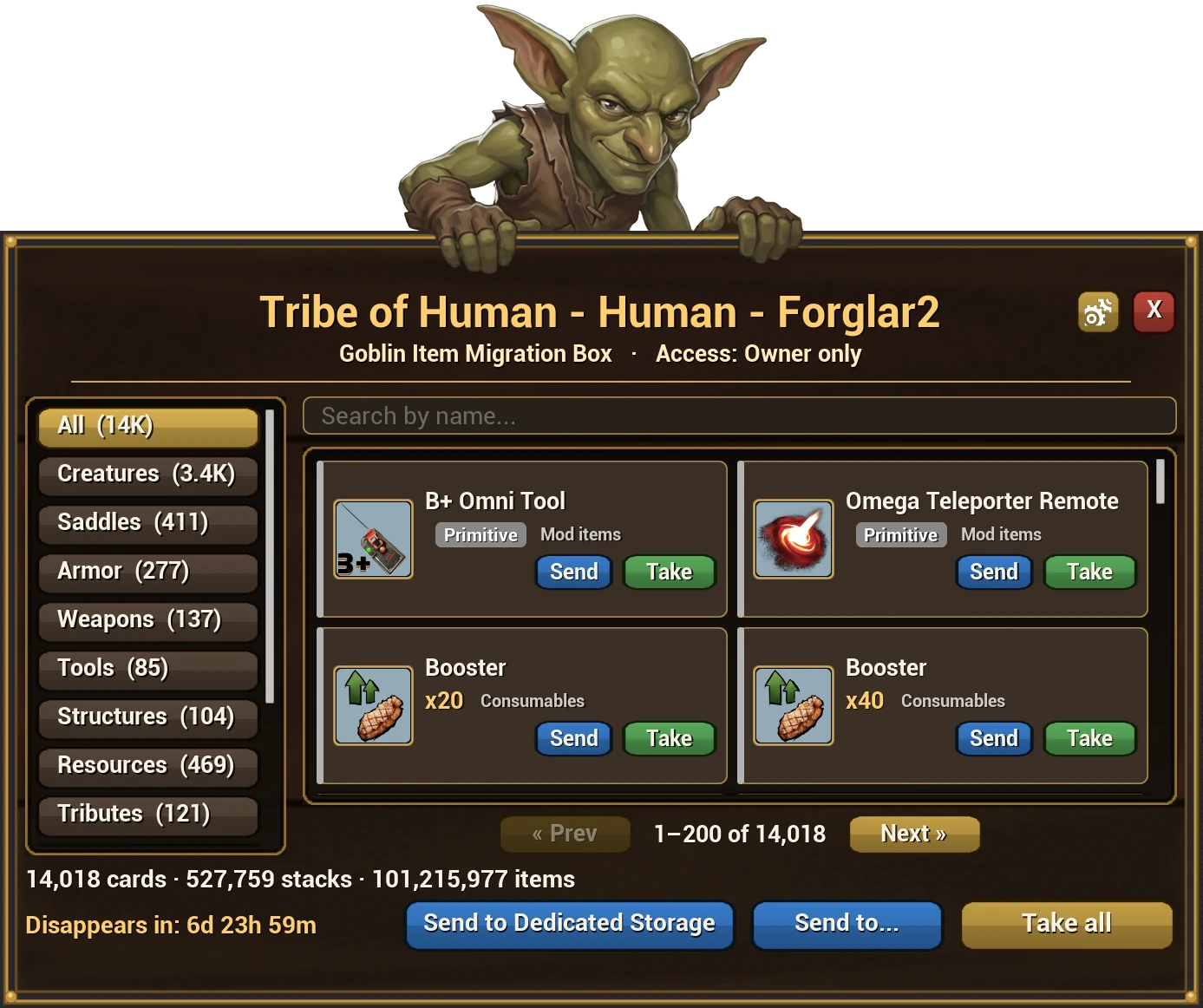
Look at the box and press your use key. The window shows your items as cards.
- Categories on the left with the number of cards in each: Creatures, Saddles, Armor, Weapons, Tools, Structures, Resources, Tributes, Consumables, Ammo, Dye & Cosmetics, Blueprints, Mod items and Other. All shows everything; there each card also names its category.
- Search at the top finds cards by name.
- Cards show the icon, the name, the amount and the quality. Items that stack are shown as one card with the full amount.
- Bottom line: how many cards, stacks and items are waiting, and the time left.
- Long lists are split into pages of 200 cards. Use Prev and Next.
Only one player can use a box at a time. If a tribe mate has it open you see who is using it; the window opens by itself when they close it.
Take items
- Take on a card takes that card. For a stacked card it takes as many stacks as you can hold; the rest stays on the card.
- Take category takes everything in the selected category. In All the button is Take all.
Taken stacks join the stacks you already carry. A big take is done in steps, so the window stays responsive; press the button again to continue.
- If your inventory is full, the rest stays in the box and the message tells you how much.
- Take category and Take all stop when you reach your weight limit. A single Take always takes the item, even if it makes you too heavy.
Send to a storage
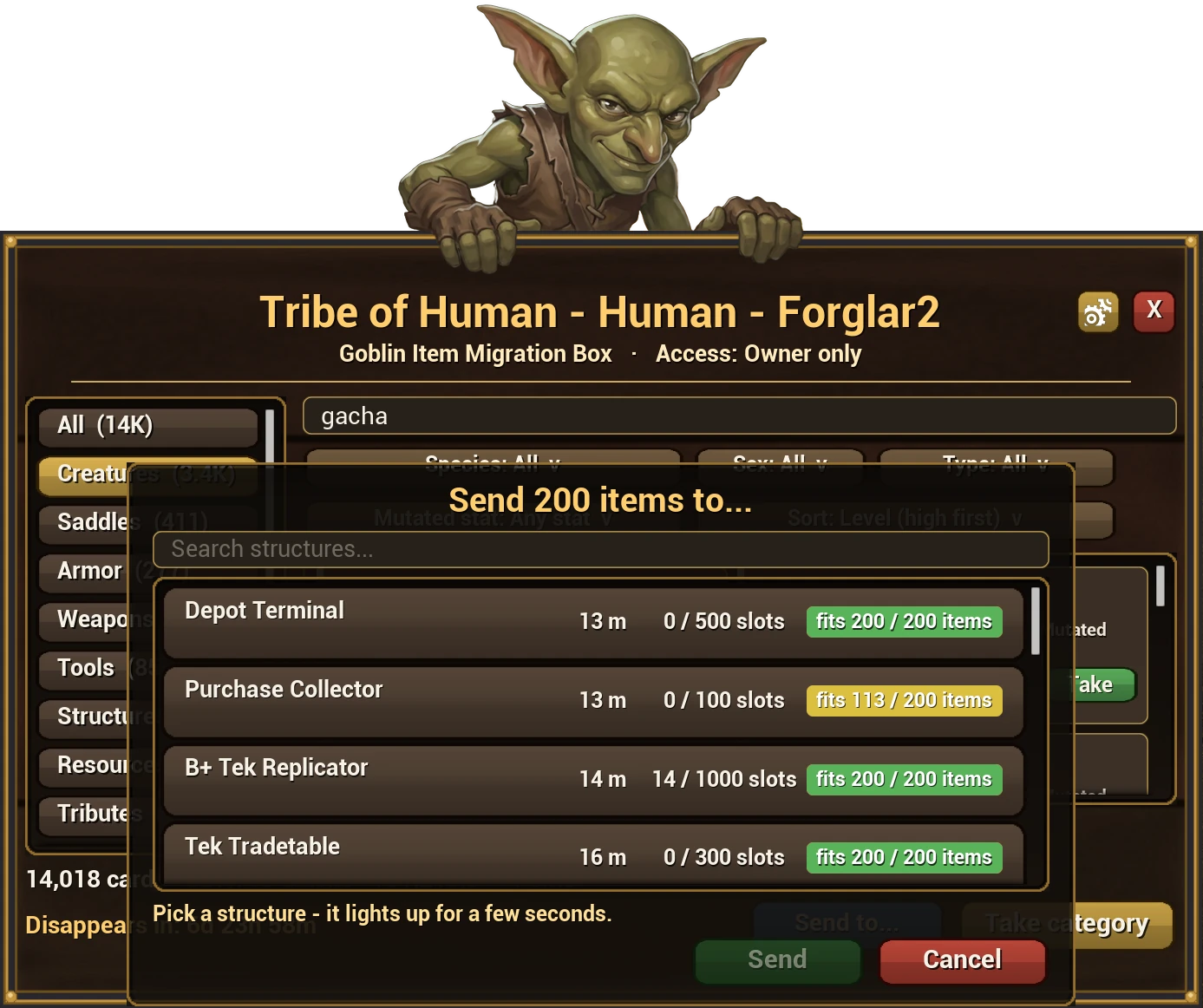
You do not have to carry everything. Send on a card, or Send to... for the whole list you are looking at, moves items straight into a structure of your tribe.
- Press Send or Send to.... A list of your tribe's nearby structures that accept these items opens, nearest first, with the distance and how much fits.
- Click a row to see a light beam above that structure, so you know which one it is. Only you see the beam.
- Press Send. If only part fits you are asked first.
Up to 50 stacks go per click. Press again to send more. What does not fit stays in the box.
Send to Dedicated Storage
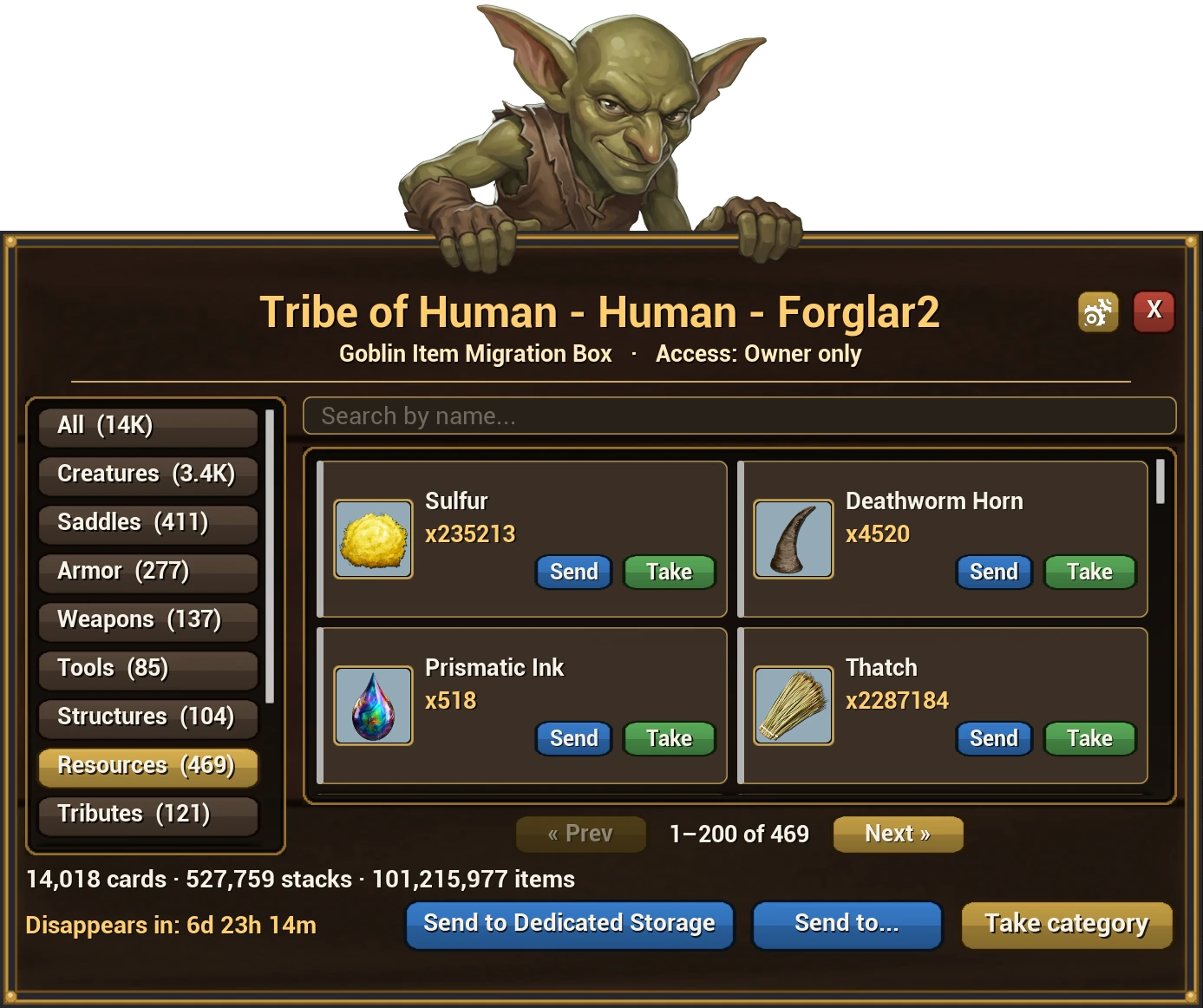
Send to Dedicated Storage moves the stackable items of the selected category into your tribe's dedicated storages near the box: first into storages that already hold that item, then into empty ones. In All it sends every stackable item.
- It works with Tek Dedicated Storages and with counter-style storages from other mods.
- Items with no matching or empty storage stay in the box. The message tells you which.
- The range is set by the server's admins.
Creatures
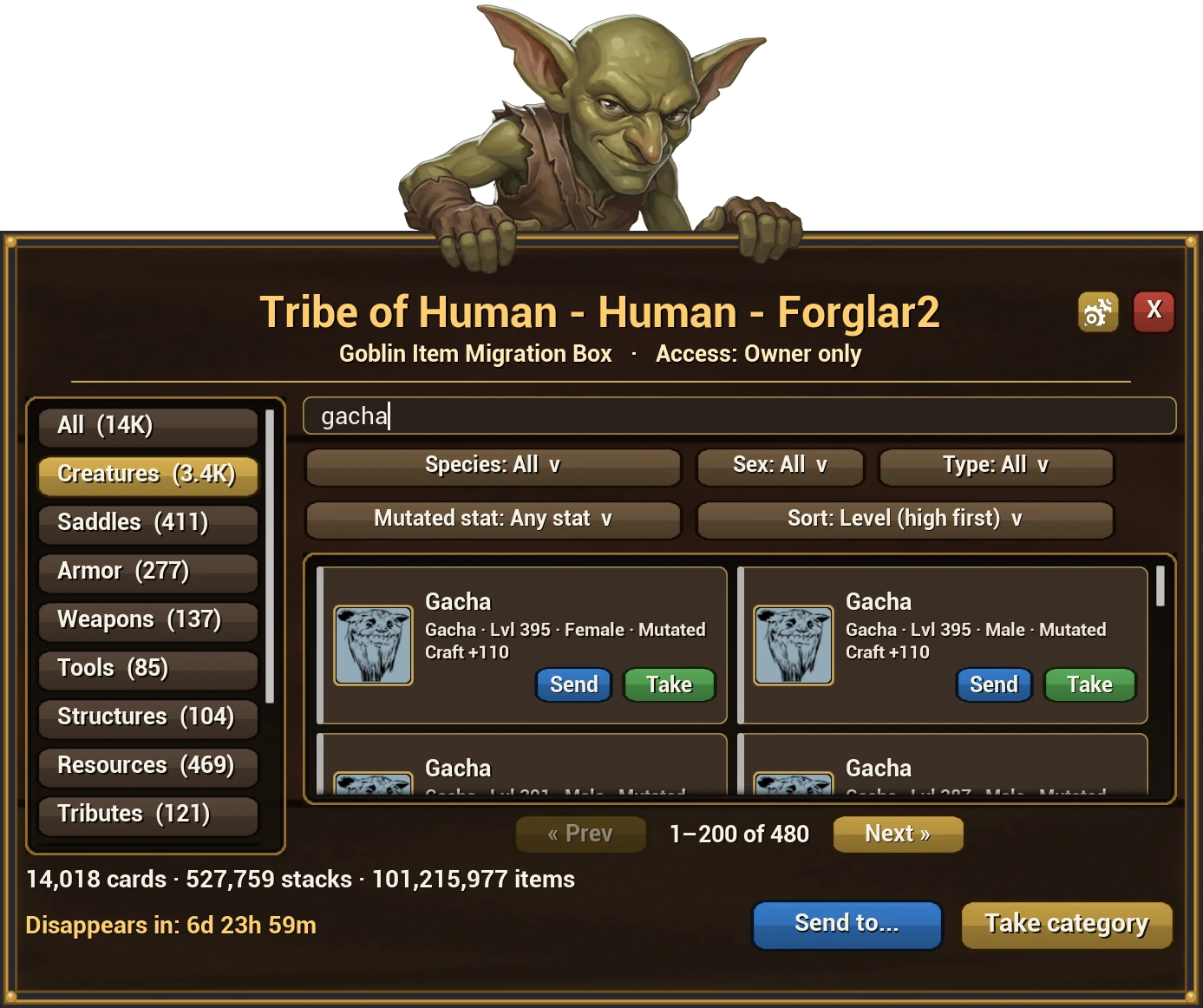
Creatures arrive in cryopods, with their saddle inside the pod. Dino Depot balls are kept as they were.
- Each card shows the species, level, sex, whether the creature is mutated, and which stats carry mutations.
- Filter by Species, Sex, Type (mutated or not) and Mutated stat, and choose how the cards are sorted.
- Take the pod and throw it out as usual.
Who can use the box
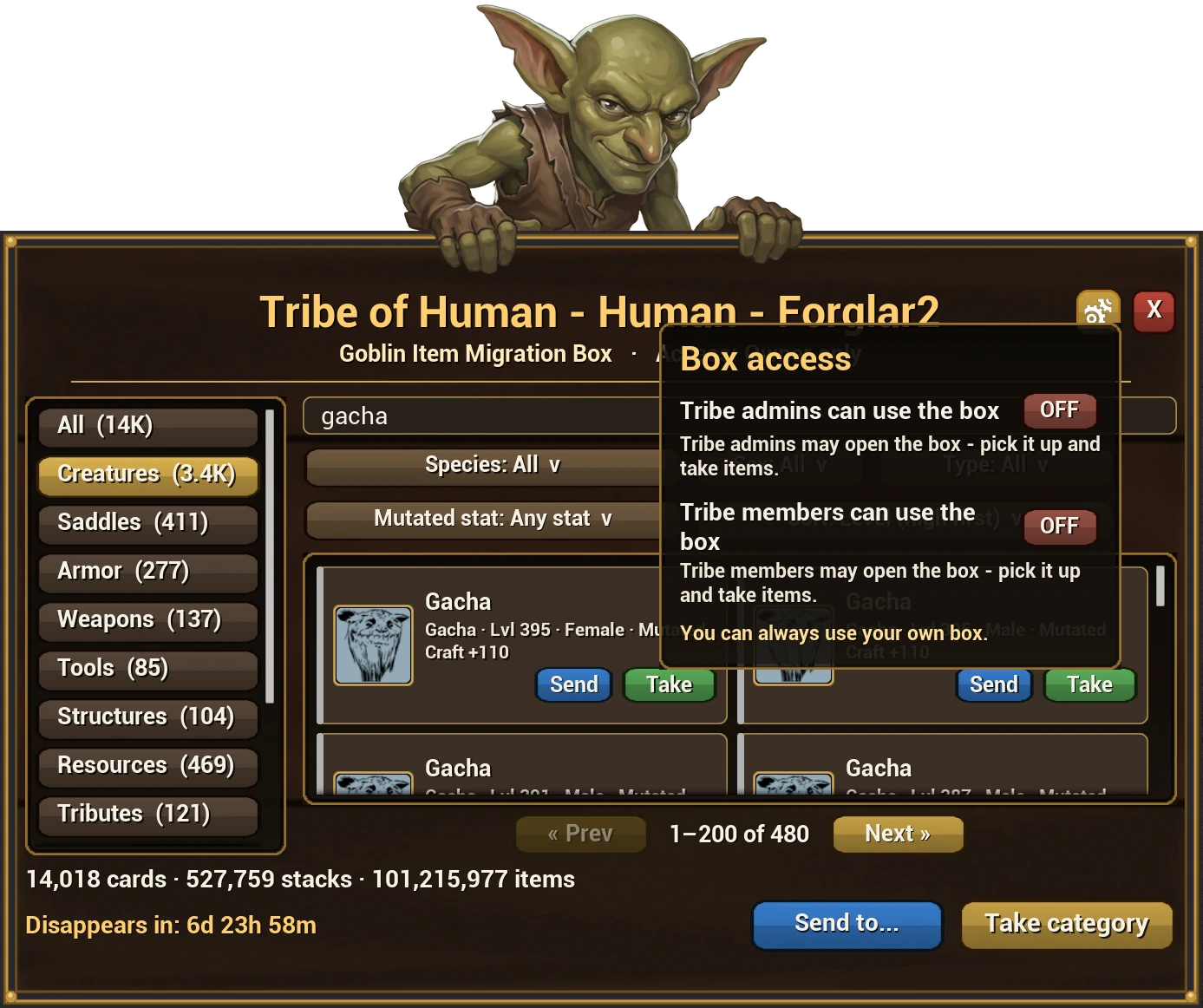
By default only the tribe owner can open the box. The owner can press the gear button in the box window and allow:
- Tribe admins, or
- All tribe members.
Players of other tribes cannot open the box or pick it up. The server's admins can switch this choice off; then every box is owner only.
Pick up, move, other maps
- Anyone who may use the box can pick it up and place it somewhere else. It keeps its contents and its timers.
- Carry the box item to another map of the cluster and place it there. You see the same items.
- Items from another mod stay in the box on a map where that mod is not installed. Open the box on a map that has the mod to take them.
When the box leaves
When the last item is taken, or the time runs out, the box rises and bursts like a firework. There is nothing to clean up.
Lost your box item, or need more time? Ask an admin. They can give the box again or add time; your items are stored on the server, not in the box item.